@aldel/react-firebase-login
LICENSE NOTICE: This is not "free software". This package is released under a dual license: you can use it for free in applications, with a user-visible attribution notice, or license it for a fee to use without the attribution notice. See the license for full details.
Send inquiries to me.
@aldel/react-firebase-login
This package provides a React component that makes it extremely simple to do Firebase Authentication sign-in for your React web app.
To install:
npm install @aldel/react-firebase-login
To use, in its simplest form, import the FirebaseLogin component and wrap your app's components in it:
import { initializeApp } from "firebase/app";
import { FirebaseLogin } from '@aldel/react-firebase-login';
import { firebaseConfig } from './firebaseConfig';
initializeApp(firebaseConfig);
function App() {
return (
<FirebaseLogin>
Ok, you are logged in!
</FirebaseLogin>
);
}
export default App;
That shows a "Sign in with Google" button when the user is not logged in:
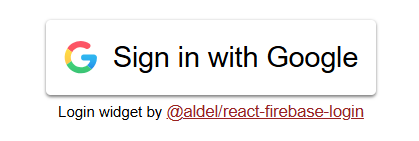
And "Ok, you are logged in!" when they are:

Here's a more complete example:
import { initializeApp } from "firebase/app";
import { LogoutButton, FirebaseLogin, useAuth, fullPageFrame } from '@aldel/react-firebase-login';
import { firebaseConfig } from './firebaseConfig';
initializeApp(firebaseConfig);
function InnerContent() {
const { user } = useAuth();
return (
<div>
<p>
Logged in as { user.email || user.phoneNumber || '(No email or phone)' }
</p>
<LogoutButton />
</div>
);
}
function App() {
return (
<FirebaseLogin
methods={['google', 'facebook', 'github', 'email', 'phone']}
redirect
header={<h1>App Name</h1>}
footer="© 2025 by Me"
frame={fullPageFrame}
>
<InnerContent />
</FirebaseLogin>
);
}
export default App;
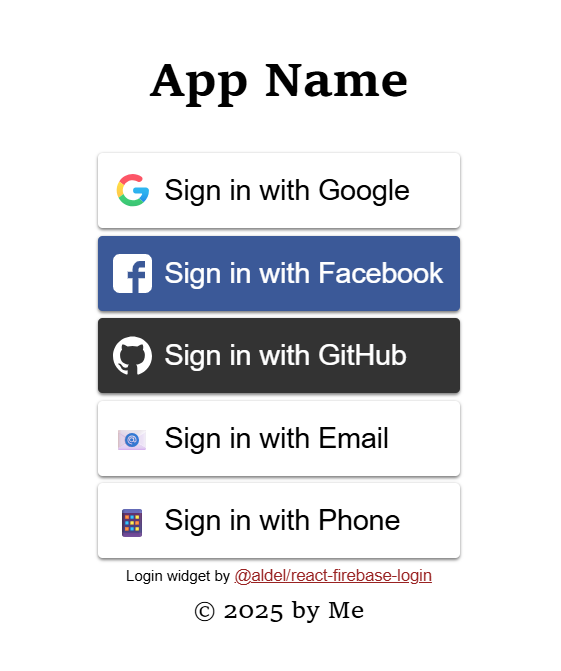
This adds:
- When not signed in:
- 5 different "Sign in with" buttons for different methods (default is just Google)
- Uses
signInWithRedirectinstead ofsignInWithPopup(the default) for Google, Facebook, and GitHub (more error-prone; see below) - Header and footer elements for the sign-in UI
- A "frame" that centers the sign-in UI in the browser window
- When signed in, displays:
- The user's email (or phone number if they used phone login)
- A sign out button
It looks something like this:
For many applications, the above is probably everything you need.
Sign-in methods
The supported methods are shown here. You must enable and properly configure each method you are using in the Firebase console.
If the methods list only has one method and it's "email", "email_link", or "phone", the initial list of "Sign in with ..." buttons is not shown; it immediately shows the UI for the specified method.
Some methods support their own individual options. If not using the default options, instead of including just the method name, you can put it in its own 2-member array, with the options as the second member, i.e. methods=[["google", googleOptions], ...]. Method options are described below in the sections for each method.
Hosting
Some methods assume that your app is running on Firebase Hosting, which automatically provides support for Firebase Authentication on a few special URL paths that start with __/. These are generally for things like email verification links, password reset links, and redirect URLs. If hosting your app somewhere else (including, probably, Firebase App Hosting), you can probably get away without the special URLs if you (a) don't use "email" or "email_link" methods, (b) use popup instead of redirect for any SSO login methods, and (c) set requireVerification={false}. Otherwise you may need to jump through additional hoops.
Email verification
By default, the user's email needs to be verified before they are considered to be signed in. Some SSO methods automatically provide verification, but some may not. The "email_link" method automatically verifies the email by its very nature; "email" does not. The "phone" method does not require email verification even if verification is turned on.
If email verification is required, FirebaseLogin will send a verification
email and tell the user to open it and click on the link. They can also click a
button to re-send the email, or another button to cancel the login.
Under the Firebase emulator, the link is printed to the console instead of being emailed.
To disable the email verification requirement, set requireVerification={false} in the FirebaseLogin props.
SSO (OAuth) methods
The SSO options are fairly obviously named; "twitter" is used instead of "x".
By default, these methods use signInWithPopup to show a popup window. To use signInWithRedirect instead, set the redirect boolean prop in FirebaseLogin.
Note that signInWithRedirect is somewhat error-prone. Make sure you follow best practices for redirect, and be aware that it won't work locally without the emulator.
OAuth scopes
To request additional OAuth scopes for a given SSO method, use method options:
methods=[
[
"google",
{ scopes: ["scope1", "scope2"]},
],
]
Email and password
To allow sign-in with email and password, use the "email" method. This is only intended for use when you have NOT enabled "Email link (passwordless login)" in the Firebase console.
You can't use both "email" and "email_link" because they are the same "provider" in Firebase Authentication with different configuration.
Email link
If "Email link (passwordless login)" is enabled in the Firebase console, use "email_link" instead of "email".
Under the Firebase emulator, the link is printed to the console instead of being emailed.
Phone
Phone login sends a confirmation code to the given phone number and waits for the user to enter it.
Phone authentication uses Google's ReCAPTCHA in "invisible" mode. This attempts to determine that the user is probably human without popping up an actual CAPTCHA, but sometimes it will not be sure, and will show a ReCAPTCHA that the user must solve before it will send the confirmation text.
Note that phone login with real phone numbers may not work when running locally on "localhost". You can set up fake phone numbers for testing in the Firebase console; or you can use the Firebase Emulator to emulate authentication, in which case the confirmation code will be printed out by the emulator instead of sent via text.
Alternate phone number input (recommended)
By default, the phone login UI uses the browser's native <input> element with type='tel', and it requires that the user enter their country code (+1 for the USA). This is not a very good UI. You can provide a different UI in the method options:
methods=[
[
"phone",
{ inputComponent: PhoneInputComponent },
],
]
The component you provide must implement these props and display any instructions needed. This is not difficult to do yourself, but the best choice is usually to use @aldel/react-firebase-login-phone-input, which is a wrapper around react-phone-number-input. This displays a pulldown list for the user's country, which defaults to the default locale in their browser, and formats the number appropriately as they type it.
To use it you must include the react-phone-number-input style sheet, which is re-exported by the wrapper component. A complete example looks like this:
import { initializeApp } from 'firebase/app';
import { FirebaseLogin, useAuth, LogoutButton } from '@aldel/react-firebase-login';
import PhoneLogin from '@aldel/react-firebase-login-phone-input';
import '@aldel/react-firebase-login-phone-input/style.css';
import { firebaseConfig } from './firebaseConfig';
import './App.css'
initializeApp(firebaseConfig);
function LoggedIn() {
const { user } = useAuth();
return (
<div>
<h2>Logged in as { user.phoneNumber }</h2>
<LogoutButton />
</div>
);
}
function App() {
return (
<>
<FirebaseLogin
methods={[['phone', { inputComponent: PhoneLogin }]]}
header="@aldel/react-firebase-login-phone-input demo"
>
<LoggedIn />
</FirebaseLogin>
</>
)
}
export default App
This would have been included as the default in FirebaseLogin, except that it seemed like excessive bloat for apps that don't use phone login (tree shaking does not currently take care of that.)
Accessing user info
The getAuth hook provides access to authentication state, like this:
const { auth, user, claims, signIn } = useAuth();
auth: The Firebase Auth object used byFirebaseLogin.user: The Firebase User object. This is guaranteed to always be valid, because the hook can only be used inside aFirebaseLogincomponent, which ensures that its children are not rendered unless there is an authenticated user. (IfgetAuthis used outside of theFirebaseLogincomponent, it will throw an exception.)claims: The user's claims, including custom claims and standard JWT claims.signIn: A function that re-opens the sign-in UI to let the user sign in to a different account or link to a different sign-in provider. This accepts an optional boolean argument,link. Iflinkis true, Firebase Auth will attempt to link the new provider account to the currently signed in user account. This will fail if the provider account or credentials are already linked to a different Firebase Auth user. Iflinkis false or not provided, the user is simply signed into a different user account.
Anonymous authentication
Anonymous authentication is not specified as a method in the methods prop. Instead, you can enable it with the allowAnonymous boolean prop. This fundamentally changes the behavior of the FirebaseLogin component: if the user is not signed in using another method, they are signed in anonymously, and the component's children are rendered, not the login UI. You can still allow them to log in by calling the signIn function returned by getAuth. This calls up the login UI, with a "dismiss" button in the upper right. If you pass true as an argument to signIn, Firebase Auth will attempt to convert the anonymous user account to a named one. This will fail if the SS provider account or credentials are already linked to a different Firebase Auth user. Otherwise, the user will just be signed in with the credentials they provide, and the anonymous account will be dropped.
Linking is not especially recommended, because of the following problematic sequence of events:
- The user is not signed in, so they are assigned an anonymous account.
- The user signs in; the anonymous account is upgraded to a named account.
- They sign out (or open your app on a different device); a new anonymous account is created.
- They attempt to sign in with the same credentials; now they get an error because that account already exists.
This is difficult to work around. If data belonging to the anonymous account needs to be available to the upgraded account, it is better to create a new account and move the data into that account.
LogoutButton
The LogoutButton component is provided as a convenience; you do not need to use it to sign out. You can instead get the Auth object from the getAuth hook and call auth.signOut().
Styling
Very minimal layout styling is hard-wired into the component as style props. It will normally use the default font, button styles, link styles, etc. To customize styles, you can provide CSS rules for various classes used in the component, all of which start with the prefix react-firebase-login-. The best thing to do is start using the component in your app, then inspect the DOM to see what classes you want to update. But for a simple example, to specify the style of all buttons in the FirebaseLogin component (except the top-level "Sign in with..." buttons) without affecting other buttons, you would do something like this:
.react-firebase-login-container Button {
color: #fff;
background-color: #000;
padding: 8px;
cursor: pointer;
};
react-social-login-buttons
The top level "Sign in with..." buttons are provided by
react-social-login-buttons.
You can pass additional props to them with the socialLoginButtonProps prop of
FirebaseLogin.